Kalide Scoring Tools
Score to picture — and deliver — without ever leaving Ableton Live.
Kalide Scoring Tools is a suite of four plug-in devices that turn Ableton Live into a proper film-scoring setup. Watch the picture, build every cue session, keep hits on the frame through tempo changes, and deliver stamped stems and review movies, all inside Live.
The suite
Four devices
VueMaster plays your film inside Live, locked to Live’s playback, with timecode on screen. The picture floats above the Arrangement view, so you can cut and duplicate time without dragging the video back into place again and again. You can also mark cues and hit points, and bring in the editor’s EDL.
More on VueMaster →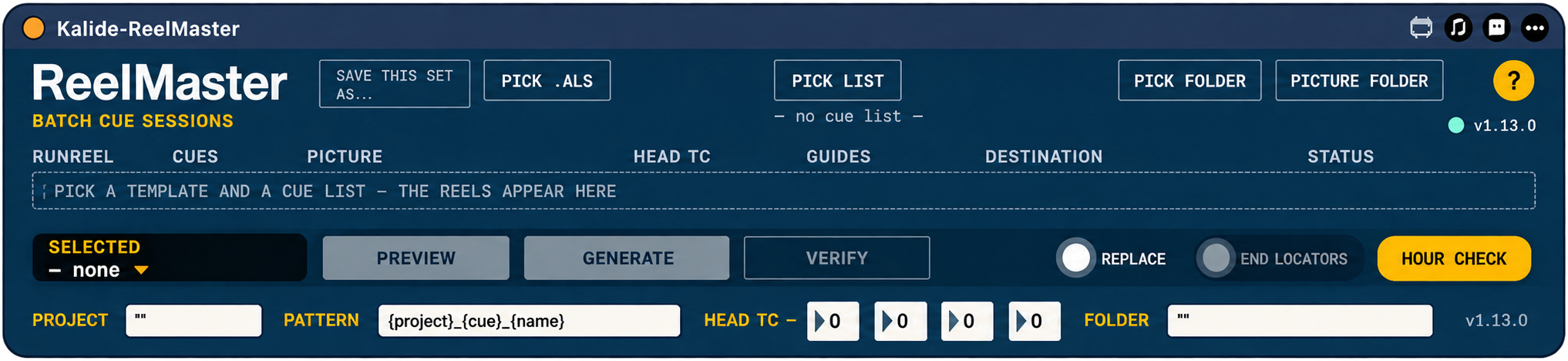
ReelMaster builds a separate Live session for every cue in the film from one template and the cue list, reel by reel. You no longer have to set up dozens of sessions by hand.
More on ReelMaster →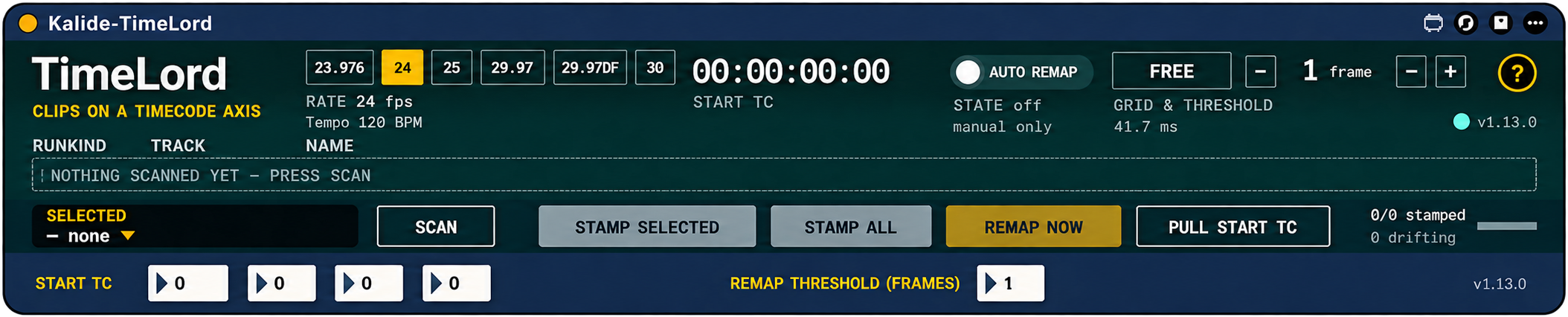
TimeLord locks clips and markers to the picture’s timecode, so a sound effect or a hit stays on its frame when you change the tempo. Change the BPM, press REMAP, and the music follows the new tempo while everything locked to picture stays put. It works with tempo ramps too: MEASURE MAP reads your tempo automation (Live 12.4.3 or later).
More on TimeLord →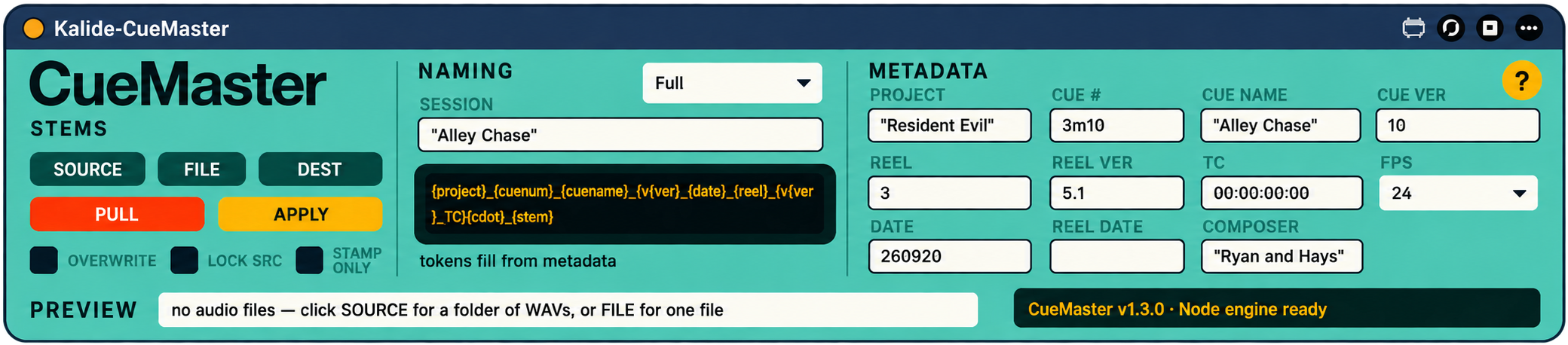
CueMaster handles delivery. When you export stems, it renames them to the studio’s naming convention and stamps each file with its timecode, so the music editor can drop them straight into place. It also makes the review movie: the cue’s picture with your mix underneath, ready to send for approval.
More on CueMaster →VueMaster
Picture, sync & spotting
Spot cues against the frame, not the bar line.
VueMaster puts your picture in a floating window locked to SMPTE timecode — not a clip on a track. Cut, insert, and duplicate time in your arrangement without ever dragging video out of the way; the picture stays locked no matter how you edit.
Load your reel — plus guide stems and an EDL, if you've got them — then spot cues and mark hits against the frame instead of the bar line.
Floating video window — editing time in your arrangement never disturbs the reel.
Double-click fullscreen, one-button show/hide, aspect-locked, multi-monitor aware.
Locked to the transport — scrub, loop, or jump and the frame follows.
23.976 · 24 · 25 · 29.97 · 29.97 DF · 30 fps.
Reel-hour convention — R5 heads at 05:00:00:00; set any start TC.
Capture & apply TC across reels; ±1-frame slip for fine alignment.
Spot cues — a named Live locator at the playhead, tagged with its exact timecode.
Hit points are kept in timecode, with a next-hit countdown.
Export a cue sheet — CSV or EDL — right next to the reel.
Up to 3 guide stems — dialog, temp, FX — locked to picture.
Level fader (−70 to +6 dB) and mute per stem, chasing the playhead sample-accurately through jumps.
EDL import — CMX 3600 EDLs and Avid feet-and-frames change lists convert straight to Live locators.
Load a folder — drop one folder and it auto-assigns the video, up to three guide stems, and an EDL in one move.
ReelMaster
Batch cue sessions
Every cue gets its own session. You don’t build any of them.
ReelMaster builds a separate Live session for every cue in the film from one template and the cue list, reel by reel.
You no longer have to set up dozens of sessions by hand.
Pick a template Live Set (.als), or use the Set you have open with USE OPEN SET.
Pick a cue list: a .csv, an .xlsx, your PRO cue sheet, or a VueMaster export, plus the picture folder and a destination folder.
See every reel before you commit: cues, picture, head timecode, guides, destination and status.
Preview, Generate, then Verify the sessions it made.
Choose whether to replace existing sessions and add end locators.
Name sessions from a pattern such as {project}_{cue}_{name}.
Set the head timecode, and use Hour Check to confirm each reel’s timecode hour.
TimeLord
Frame-based sync
Change the tempo. The hits stay on the frame.
TimeLord locks clips and markers to the picture’s timecode, so a sound effect or a hit stays on its frame when you change the tempo.
Change the BPM, press REMAP, and the music follows the new tempo while everything locked to picture stays put. It works with tempo ramps too: MEASURE MAP reads your tempo automation (Live 12.4.3 or later).
Scan the Set, then LOCK NEW locks every item that has no timecode yet. Work by track or by clip, and tick whole tracks in or out.
A running count shows how many items are locked and how many have drifted off their frame.
Safe by design. LOCK NEW never changes a lock that already exists, and REMAP never rewrites where things belonged.
REMAP NOW moves everything locked back onto its frame after a tempo change.
AUTO REMAP does it for you, or leave it off and remap by hand.
Set a remap threshold in frames, and land exactly on the timecode or on the nearest note division (1/4 to 1/32, triplets included).
MEASURE MAP reads your tempo automation, ramps included, so locks hold under a changing tempo (Live 12.4.3+).
23.976 · 24 · 25 · 29.97 · 29.97 DF · 30 fps.
Set the start timecode yourself, or take it from VueMaster with SYNC WITH VUEMASTER, which brings the frame rate too. After a new cut, KEEP CLIPS shifts every lock to match.
CueMaster
Naming & delivery
Every cue lands exactly where you scored it.
CueMaster takes your exported stems and renames and stamps them with frame-accurate Broadcast Wave timecode, so every cue lands on the dub stage exactly where you scored it.
Cue names, numbers, and timecode come straight from your session metadata. No re-typing, no conform headaches.
Token templates — build filenames from {project}, {cuenum}, {cuename}, {reel}, {tc}, {stem}, {version}, {date}, {composer}, and more.
Four naming presets plus a fully editable template.
Live before → after preview as you type.
Timecode in every stem — frame-accurate at pulldown rates (23.976 / 29.97), not just whole-number rates.
Automatic frame compensation for hand-typed timecode — fixes the one-frame-late spot in Pro Tools.
Full BWF metadata: originator, origination date and time, coding history, sample rate and bit depth auto-detected.
Pull from VueMaster — project, reel, fps, and start timecode auto-fill from the loaded reel, 29.97 drop frame included.
Batch-rename and stamp a whole folder in one click — in place, or as clean copies.
Lock Source pins your export folder; a loud warning if it goes missing.
Works on network and cloud volumes — LucidLink, SAN — where Live's own file tools can't.
Non-destructive: deliver clean copies and leave your raw exports untouched.
One press writes the cue’s picture with your mix underneath, cut to the exact frame from the stamped timecode.
Clean picture, or burned-in cue name and timecode. Uses the free ffmpeg.
Spot to picture in VueMaster, keep every hit on its frame with TimeLord, build a session for every cue with ReelMaster, and deliver stamped stems and review movies with CueMaster. From first frame to dub stage, the score never leaves Live.
FAQ
Which edition of Live do I need?
Ableton Live 12 Suite, or Live 12 Standard with the Max for Live add-on.
Does it work on Windows?
TimeLord, ReelMaster and CueMaster run on macOS and Windows. VueMaster’s picture is macOS only for now, because the Max that comes with Live on Windows doesn’t include the video engine it needs.
Does it work with tempo automation?
Yes. TimeLord’s MEASURE MAP reads your tempo automation, ramps included, so locks hold under a changing tempo. Tempo automation needs Live 12.4.3 or later.
What happens when the picture changes?
VueMaster loads the new cut. SYNC WITH VUEMASTER with KEEP CLIPS shifts every lock to match, and REMAP moves only what you choose. Automatic EDL conform isn’t built yet.
Do I need ffmpeg?
Only for review movies. CueMaster uses the free ffmpeg to write them: install it with brew install ffmpeg on Mac, or use ffmpeg.exe on Windows.
Will it slow my session down?
VueMaster’s picture runs in its own floating window, apart from your tracks, so editing time in the arrangement never disturbs the reel.
What do I get?
Four devices, each with a built-in quick guide and a full illustrated manual, and free updates within version 1.
Questions? Email inquiry@kalide.xyz.
Built-in quick guide and a full illustrated manual with each device. Free updates within version 1.